Diese Plugin ermöglicht es den Blog Administratoren oder Autoren die Benachrichtigung zu neu eintreffenden Kommentaren zu verwalten. Da WordPress nur die Option biete bei jedem Kommentar eine E-Mail zu verschicken, kann das Postfach der Administrators sehr schnell eine Menge E-Mails pro Tag erhalten. Außerdem kann nur der Blog Administrator über neue Kommentare benachrichtigt werden.
Wenn du dieses Plugin einsetzt, kannst due einen speziellen RSS Feed abonnieren, der alle Kommentare enthält, auch solche, die moderiert werden müssen. Jeder Feed-Eintrag enthält zusätzlich die Links, um einen Kommentar zu löschen, freizugeben oder als Spam zu markieren. Als Spam markierte Kommentare werden nicht mehr im Feed angezeigt.
Installation:
Installation über die WordPress Adminstrator-Seiten:
- Gehe zur Admin-Seite
Plugins -> Installieren - Suche nach
kau-boyund wähle das Plugin aus - Wähle die Aktion
Jetzt installieren - Klicke auf
Jetzt installieren - Aktiviere das Plugin über den
PluginsMenüpunkt in WordPress - Du musst eventuell die Einstellungen anpassen
Installation unter Verwendung der WordPress Adminstrator-Seiten:
- Lade die zip-Datei des Plugins herunter: kau-boys-comment-notification.1.3.zip
- Gehe zur Admin-Seite
Plugins -> Installieren - Wähle den Link
HochladenunterPlugins InstallierenÜberschrift - Wähle die zip-Datei aus und klicke
Jetzt installieren - Aktiviere das Plugin über den
PluginsMenüpunkt in WordPress - Du musst eventuell die Einstellungen anpassen
Installation unter Verwendung von FTP
- Lade die zip-Datei des Plugins herunter: kau-boys-comment-notification.1.3.zip
- Entpacke es und lade es in dein
/wp-content/plugins/Verzeichnis hoch - Aktiviere das Plugin über den
PluginsMenüpunkt in WordPress - Du musst eventuell die Einstellungen anpassen
Screenshots
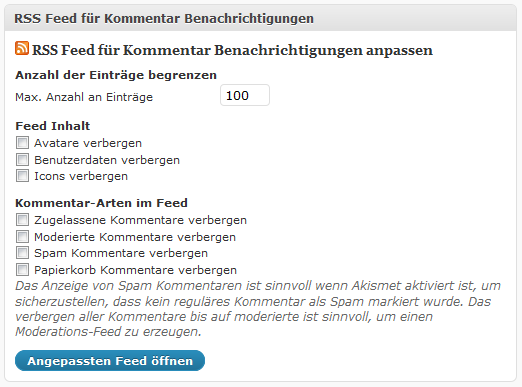
Screenshot des Feed Dashgboard Widgets
Versionsgeschichte:
- 1.3 Entfernen eines Zeilenumrbuchs am Anfang des Feed um einen Parse-Error zu beheben, der hier beschrieben ist: http://validator.w3.org/feed/docs/error/WPBlankLine.html
- 1.2 Hinzufügen einer Option zum Verbergen von Papierkorb-Kommentaren
- 1.1 Hinzufügen von schönen Icons zum Feed und einer Option diese zu verbergen
- 1.0.1 Entfernen von „short open tags“, die auf blogs die Fehler verursachen die „short_open_tag“ nicht auf „On“ gesetzt haben
- 1.0 Hinzufügen der Benutzerdaten (Name, E-Mail, Website) und der Option zum verbergen, hinzufügen eines Trackback/Pingback avatar icons zum Feed
- 0.6 Hinzufügen der Option zum Verbergen aller Kommentar-Arten um spezielle Feeds, wie z.B. einen Moderations-Feed erstellen zu können
- 0.5 Hinzufügen der Option zum Anpassen des Feeds zum Dashboard, um sie auch Redakteuren anzuzeigen
- 0.4 Option zum Einfügen von Spam Kommentaren zum Feed hinzugefügt, um Kommentare zu erkennen, die von Akismet fälschlicherweise als Spam markiert wurden
- 0.3 Hinzufügen von Links zum Ansehen des Kommentars im Blog und zum Antworten auf einen Kommentar
- 0.2 Optionen zum Anpassen des Feeds hinzugefügt, Avatare zu Fee hinzugefügt
- 0.1 Erste stabile Version
Wenn dir dieses Plugin gefällt oder dir etwas fehlt, würde ich mich freuen es zu erfahren. Hinterlasse einfach ein Kommentar auf dieser Seiter oder auf meiner WordPress Plugin Seite.


The admin can use your plugin, but we can not see how editors can assign to the comment feed.
The add-on entry in the left column sidebar is only visible for admins.
regards
Håkan
Håkan thanks for this note. I didn’t know that it would only be visible for admins. My first choice for the feed option was a button on the Dashboard, but I haven’t found out how to do that.
I will upload a version that will also work for editors later this day. If you have access to the database you can bulid the feed with the user data yourself. Or just wait for todays update.
Thanks Bernard,
Now it works for me. An editor will see it at the bottom of the dashboard and can then Open custom feed.
Another useful application would be for an editor to open a feed only for new comments waiting to be moderated.
Håkan that’s a very good idea for the plugin. I will add that option in the next update.
I think it would be the best to give the users the choice to add the diffrent types like regular, spam and modeartion comments, so they can just have the feed they need.
[…] 11.Kau-Boy’s Comment Notification […]
[…] kontrolliere alle als Spam markierte Kommentare mit Hilfe meines Kommentar-Feed Plugins per Outlook. Das dauert pro Tag nur ein paar Sekunden und ich kann damit Kommentare finden, die von […]
Hi, My comment notifications by email seem to have stopped arriving. I have tried using your plugin to begiin receiving notifications again but even with your plugin I am still not recieving emails when new comments arrive. Any ideas would be appreciated. I have all the options setup in wordpress settings > discussion area to notify me but I recieve nothing. I also have askimet set up. Thanks
Hi Dave,
my plugin doesn’t affect the e-mail notification of WordPress and it doesn’t provide an e-mail notification, yet. You can build yourself a RSS feed which you can add to a mail program like Outlook, to a RSS-ready browser or to an online feed reader like Google Reader.
I used my plugin to create a feed with spam and moderation feeds only so that I keep track of things I have to do with the comments. And I got a second feed with all moderated and approved comments on my phone to read useful comments every I am.
Is there some functionality you are missing with the plugin? The problem with the integrated e-mail notification might be some rights problems on your webhoster. Or it may be caused by any other plugin you have installed. Is there anything installed that has to do with comments or with sending e-mails? You might deactivate all comment and then test the notification again. If it works activate one plugin at a time and test the notification again. Then you might find the plugin that affects the notification.
After installing your plugin, how do I access the plugin dashboard to control the settings? I want to hide approved comments. Thanks.
First, make sure that you have activated the plugin through the „Plugins“ overview. Than navigate to your dashbord. If you don’t see the widget, click on the „Screen Options“ at the upper right on your dashboard and activate the „Comment Notification RSS Feed“ widget.
If it does not work or you have any further questions, just leave another comment.
Awesome, thanks Bernhard! And, thanks for the quick response as well. 🙂
Hi Bernhard – I’ve installed the plugin (which looks extremely useful) but when I try to generate the RSS feed I get the following error:
XML Parsing Error: XML or text declaration not at start of entity
Line Number 2, Column 1:<rss version="2.0"
^
I've had this problem before with standard WP RSS feeds and have used the 'Fix RSS Feed' plugin to clean the feed up – I think the plugin strips any blank spaces from the start of the feed – and make it readable. Do you have any idea how I could do the same for the feed generated by your plugin?
Hi Darren,
I used the RSS feed template from WordPress as a basis for this plugin. I didn’t thought that there would be an issue with it.
I just removed a line break at the beginning of the RSS. Please update to version 1.3 and test it again.
Thank you very much for applying a fix so quickly. But I’ve deleted and re-installed the plugin with a v.1.3 download and I’m afraid it still doesn’t work and I’m getting the same error.
I’ve also run through the files mentioned in that validator.w3.org page that you linked to and a few more in the wp-includes directory and taken out any unnecessary whitespace I could find, but still the same error.
Thanks anyway.
…and just to confuse me further, I’ve installed the plugin on a second site and it works perfectly first time!
Must be a problem with my installation – I’ll re-upload a fresh copy of WP, see if that helps.
Cheers!
On which RSS application do you get this error? Maybe I can reproduce it on my PC and find a working solution for this error.
It’s just occurred to me that I’m using the Feedburner Feedsmith plugin to redirect the main site feed to Feedburner – I wonder if that’s clashing with yours..? I’ll try deactivating that and see if it makes a difference.
Funktioniert dieses Plugin auch in Version 4.8.1 ? Auf WordPress.org konnte dazu nichts erfahren.
Um ehrlich zu sei habe ich es lange nicht getestet (also den Feed abonniert), aber es ist auf meinem Blog noch aktiv und scheint zu funktionieren.